

Setting up an eSIM on your Google Pixel 9 for remote work is straightforward, involving a few taps in your device settings to scan a QR code or manually enter activation details, ensuring you have reliable data connectivity whether you're tethering a laptop in a Kyoto cafe or taking calls from a co-working space in Berlin-Mitte.
Pixel 9 eSIM for the Digital Nomad: Why it Matters in 2026
Remember those days of fumbling with tiny SIM cards at airport kiosks? Or worse, arriving in a new city, say, Barcelona's Gothic Quarter, and realizing the local Vodaphone store closes at 8 PM, leaving you phoneless until morning? I've been there, more times than I care to admit. One memorable evening in Bucharest's Lipscani district, after a flight delay, I couldn't even hail a taxi because my phone was dead, and I had no local data to activate an e-hailing app. That's a pain point you simply can't afford when you're on the clock, needing to send that urgent report or join a client video call.
For the remote worker in 2026, the Google Pixel 9, with its robust eSIM capabilities, isn't just a phone, it's a mobile command center. It means ditching the physical faff and embracing instant connectivity. Imagine landing at Narita, stepping onto the JR Narita Express, and having your data already active, ready to navigate the labyrinthine Tokyo Metro or confirm your Airbnb in Shibuya. No more missed connections, no more desperate searches for airport Wi-Fi that never quite works. The Pixel 9's seamless eSIM integration is a game-changer for maintaining work reliability across time zones and continents. It's about minimizing friction so you can focus on the work, and perhaps, on finding that perfect espresso at a hidden cafe in Lisbon's Chiado.
What is an eSIM and How Does it Benefit Remote Workers?
An eSIM, or embedded SIM, is essentially a digital SIM card built directly into your Pixel 9. Instead of swapping physical plastic, you download a carrier profile. For remote workers, this translates to unparalleled flexibility. You can switch between local data plans or international roaming packages with a few taps, often before your plane even touches down. This agility means you're never truly disconnected, a lifeline for project deadlines and client communications.
The Pixel 9 Advantage: Hardware and Software Synergy
Google's Pixel series has always excelled at integrating hardware and software, and the Pixel 9 is no exception. Its advanced modem supports a wide array of global cellular bands, crucial for reliable connectivity in diverse locations. Coupled with Android's intuitive interface, managing multiple eSIM profiles is a breeze. This synergy translates to fewer dropped calls during a crucial Zoom meeting and faster upload speeds when you're trying to push a large file from a co-working space in Berlin.
Before You Depart: The Crucial Pre-Travel Checklist
Preparation is the bedrock of smooth remote work abroad. There's nothing worse than scrambling for solutions when you're already jet-lagged and facing a looming deadline. Before you even think about packing your noise-canceling headphones, you need to ensure your Pixel 9 and your digital life are ready for the connectivity challenges of the road.
Unlocking Your Pixel 9 for Global Flexibility
First things first, make sure your Pixel 9 is unlocked. If you purchased it through a carrier, it might be locked to their network, preventing you from using other eSIMs. A quick call to your carrier should clarify this. Most major carriers, like AT&T or Vodafone UK, will unlock your device once your contract terms are met, typically 24 months. I learned this the hard way in Japan when trying to activate a local UQ Mobile eSIM and discovering my phone was still tethered to my home network, leading to a frantic 3 AM customer service call.
Researching eSIM Providers and Data Plans for Your Destination
This is where the real homework begins. Don't just pick the first eSIM provider you see. Look into coverage in the specific neighborhoods you'll be frequenting. If you're working from Lisbon, for instance, check provider coverage in areas like Alfama, Baixa, and Parque das Nações. For data, consider how much you genuinely need. Are you just checking emails, or will you be streaming video calls and tethering your laptop for hours? Providers like True Roaming offer various plans, from regional packages for all of Europe to country-specific options for places like /en/esim-usa. Always compare not just the gigabytes, but also the network partners, especially if you need consistent 5G.
| Provider Feature | Casual Traveler | Remote Worker | Digital Nomad |
|---|---|---|---|
| Data Volume | 5-10 GB | 20-50 GB | 50 GB+ or Unlimited |
| Validity | 7-15 Days | 30 Days | 30-90 Days, Multi-country |
| Network Speed | 4G/LTE (sufficient) | Consistent 5G (preferred) | Highest available (essential for tethering) |
| Calling/SMS | VoIP apps only | VoIP apps + local number option | VoIP apps + local number with forwarding |
| Price Range (approx) | €10-€20 | €25-€50 | €50-€100+ |
Downloading Essential Apps Before You Fly
Before you even step foot on the plane, download all your critical work apps. Slack, Zoom, Google Workspace apps, your VPN, banking apps, and most importantly, local transit apps (like BVG for Berlin, ATM for Milan, or MTA for New York). Ensure they're updated and logged in. I once arrived in Seoul's Gangnam district needing to catch the subway, only to find my T-Money app needed a huge update over a painfully slow public Wi-Fi. Save yourself the headache.
Activating Your eSIM on Pixel 9: A Step-by-Step Guide
This is the moment of truth. Getting your eSIM up and running on your Pixel 9 is generally straightforward, but attention to detail is key. The process is remarkably similar across most Android devices, so if you've ever set up an eSIM on a Samsung Galaxy S26, you'll find the Pixel 9 flow familiar. (For more on that, check out our guide on Samsung Galaxy S26 for Expats: Seamless eSIM Activation in South America 2026.)
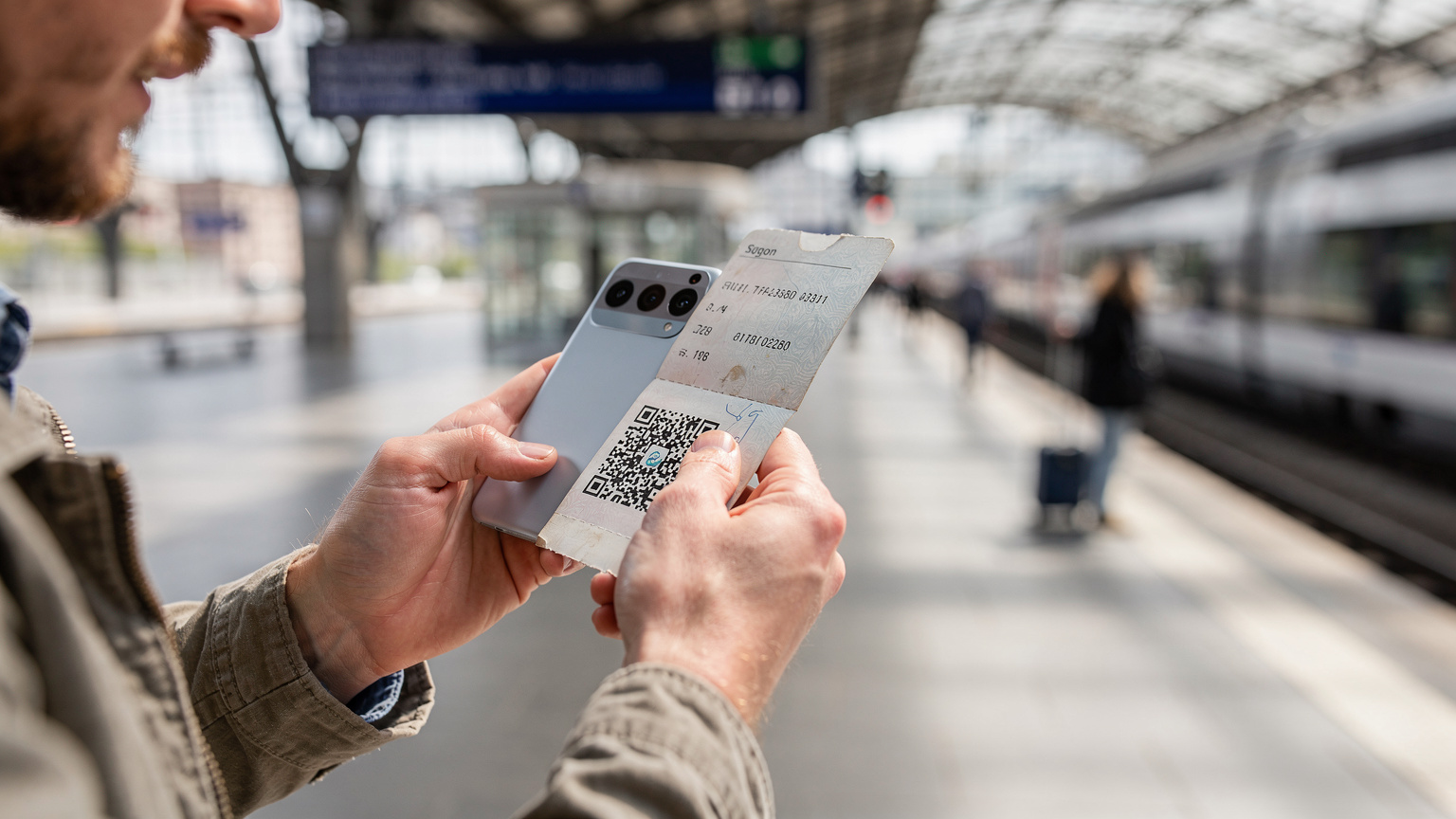
Quick Activation: Scanning a QR Code
- Open Settings: On your Pixel 9, navigate to the main 'Settings' app. You can usually find this by swiping down from the top of your screen and tapping the gear icon.
- Network & Internet: Tap on 'Network & internet'.
- SIMs: Select 'SIMs' or 'Mobile network'. Here, you'll see options for your existing SIMs.
- Add a new SIM: Tap the '+' icon or 'Add new SIM' (wording may vary slightly).
- Download an eSIM instead?: When prompted, choose 'Download an eSIM instead?'.
- Scan QR code: Your Pixel 9 camera will activate. Point it at the QR code provided by your eSIM provider. Make sure the code is well-lit and fully in frame.
- Confirm & Activate: Follow any on-screen prompts to confirm the plan details and activate your eSIM.
- Set Preferences: Once activated, you'll be asked to set preferences for calls, texts, and mobile data. For remote work, always ensure your new eSIM is set as the default for mobile data.
Manual Activation: When QR Codes Are Not an Option
Sometimes, you'll get activation details via email without a QR code, or perhaps you're tethering from another device and can't easily scan. Manual activation is your backup.
- Follow Steps 1-5 above: Get to the 'Download an eSIM instead?' step.
- Need help?: Instead of scanning, look for a 'Need help?' or 'Enter it manually' link. Tap this.
- Enter Details: You'll typically need to enter an 'SM-DP+ Address' and an 'Activation Code'. These will be provided by your eSIM carrier. Type them in carefully, paying attention to upper/lower case and any special characters.
- Confirm & Activate: Proceed as with QR code activation, confirming the plan and setting your data preferences.
Optimizing Your Pixel 9 for Remote Work with eSIM
Getting connected is one thing, but staying reliably connected for work is another challenge entirely. The Pixel 9 offers several features that, when tweaked correctly, can turn your phone into a formidable remote work tool. It's about more than just having data, it's about maximizing its efficiency and reliability.
Managing Multiple eSIM Profiles: A True Multi-Tasker
One of the greatest strengths of eSIM is the ability to store multiple profiles. I typically keep my home country's eSIM active for banking 2FA and essential calls, while using a travel eSIM for data. For example, I might have my US T-Mobile eSIM active for calls, and a regional European eSIM for data as I hop from a client meeting in Paris's Le Marais district to a brainstorming session in Amsterdam's Jordaan. Your Pixel 9 lets you easily switch which eSIM is active for data, or even for calls and SMS, directly from the 'SIMs' menu in 'Network & internet'.
Data Roaming Settings and Usage Monitoring
Always double-check your data roaming settings. With a dedicated travel eSIM, you'll want roaming enabled for that profile. For your home eSIM, ensure roaming is OFF unless you've specifically purchased an international roaming package from your home carrier, to avoid bill shock. The Pixel 9's data usage monitor is incredibly useful. Go to 'Settings' > 'Network & internet' > 'Internet' > then tap the gear icon next to your active mobile network. Here, you can see how much data you've used, set data warnings, and even identify which apps are consuming the most data. This is crucial for managing capped plans, especially if you're frequently tethering your laptop. (Speaking of laptops, if you're relying on your phone for internet, you might also be interested in eSIM for PC Abroad: Your Laptop's Global Data Upgrade in 2026.)
Optimizing Hotspot Tethering for Your Laptop
Your Pixel 9 can act as a portable Wi-Fi hotspot, a lifesaver when cafe Wi-Fi is spotty or non-existent. To set it up, go to 'Settings' > 'Network & internet' > 'Hotspot & tethering' > 'Wi-Fi hotspot'. You can customize the network name and password. For remote work, consider these tips:
- Band Selection: If your Pixel 9 offers it, select the 5GHz band for your hotspot if your laptop supports it. It provides faster speeds and less interference than 2.4GHz, ideal for video calls.
- Battery Life: Hotspotting drains battery quickly. Keep a power bank handy. I carry a 20,000 mAh Anker power bank, enough to keep my Pixel 9 and my MacBook Air going for a full workday.
- Data Consumption: Be mindful of your laptop's background processes. Ensure cloud syncs are paused and large updates are deferred until you have stable, unlimited Wi-Fi.
Troubleshooting Common eSIM Snags When You're On The Clock
Even with the most meticulous planning, connectivity issues can arise. When you're mid-project and your internet drops, it feels like the world is ending. My Pixel 9 has saved me from more than one panic attack in foreign lands, but knowing how to troubleshoot quickly is key. I've learned these tricks through trial and error, like the time I lost signal in a tiny Sicilian village because my phone clung to a weaker, more expensive network.
No Service or Weak Signal: Initial Checks
This is the classic,